
1.3
How to create a podcast
Glow accepts podcast audio in MP3 or WAV format. You can use Google NotebookLM or GovTech's PodCraft to generate an AI-narrated podcast from your source documents, or record your own audio and use Transcribe to get the transcript.
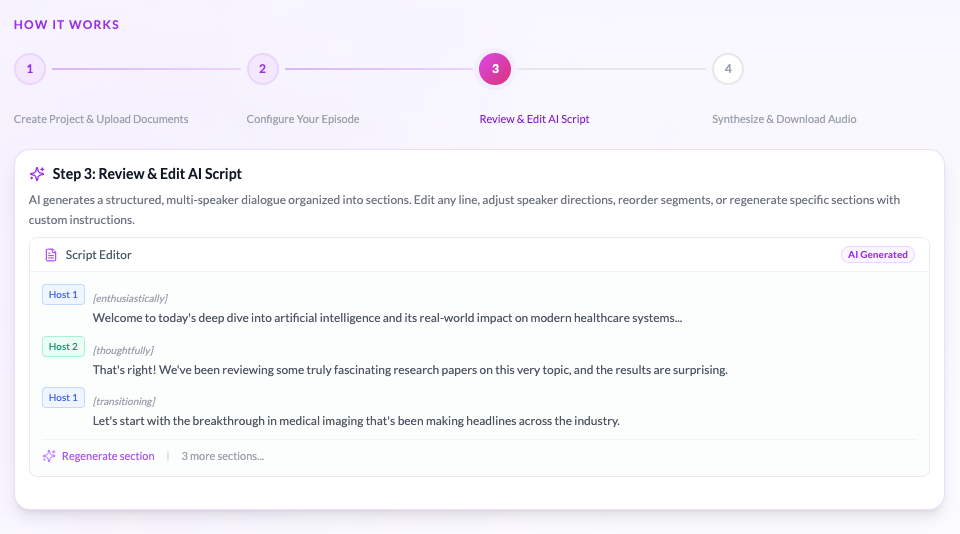
Both NotebookLM and PodCraft generate audio from your documents, but the key difference is that PodCraft lets you review and edit the generated script before the audio is synthesised — so you have more control over the tone, content, and what gets included in the final output.
Helpful AI tools for podcasts:
- Google NotebookLM — generate a full podcast-style audio overview directly from your source documents
- GovTech Platform AI (PodCraft) — generate a scripted, multi-speaker podcast from your documents with full script editing before synthesis
- Transcribe (via SGTS) — auto-generate a transcript from your recorded audio
Option A — Google NotebookLM
NotebookLM can generate either a single-voice or conversational two-host audio overview from your source documents and produces a transcript automatically.
- 1
Open NotebookLM
Go to notebooklm.google.com and sign in with your Google iCON account. - 2
Create a notebook
Click 'New Notebook' and name it after your topic (e.g. 'Digital Gov Explainer'). - 3
Upload your sources
Add your source documents (PDF, Google Docs, copied text). Stick to materials you have the right to use — your own documents, official publications, or content shared for this purpose. - 4
Generate the Audio Overview
Click 'Audio Overview' in the right panel. Before hitting generate, click 'Customise' to shape the tone, format, and hosts. Here's a prompt you can paste straight in:
Goal: Generate a high-energy, conversational Audio Overview (Podcast Style) that synthesizes the key actionable takeaways from the notebook's sources.

Target Audience: Educators and Corporate Staff with limited time and attention spans (busy professionals).

Audio Length: 4–6 minutes maximum.

Key Customization Directives
Format and Length: Generate an Audio Overview in a fast-paced, conversational podcast style. The entire overview must be tightly edited and run for no longer than 6 minutes, prioritizing the most critical information and avoiding unnecessary detail.

Voices and Roles:
Host 1 (Female Voice): Act as a "Curator". Her tone should be upbeat, empathetic, and action-oriented. Her role is to introduce the topic, present a core challenge or common problem, and summarize the final "Next Step" takeaway.
Host 2 (Male Voice): Act as an "Analyst". His tone should be confident, concise, and focused on facts/strategies. His role is to present the core, evidence-based insights and the practical application of the information from the source documents.

Content and Tone:
The dialogue must be hyper-focused on practical, actionable advice—not just theory.
Use variations in pacing to sound human and engaging. Add natural pauses between both hosts, do not overlap their audios. Slow down the pacing a little so that non-native speakers can easily understand.
- 5
Review transcript & audio
It's worth reading through the transcript before listening. AI-generated content can occasionally miss nuance — give it a quick scan and adjust anything that doesn't quite sound right. - 6
Download the audio
Download the MP3 and save it to your computer. - 7
Get transcript
In any LLM application (Pair Chat or Gemini), upload the MP3 file and use this prompt:
Please provide a complete and accurate transcription of the audio. Indicate each change in speaker by starting a new paragraph and clearly labeling the speaker using the designations "Male" and "Female" accordingly at the beginning of their respective turns.
Option B — GovTech Platform AI (PodCraft)
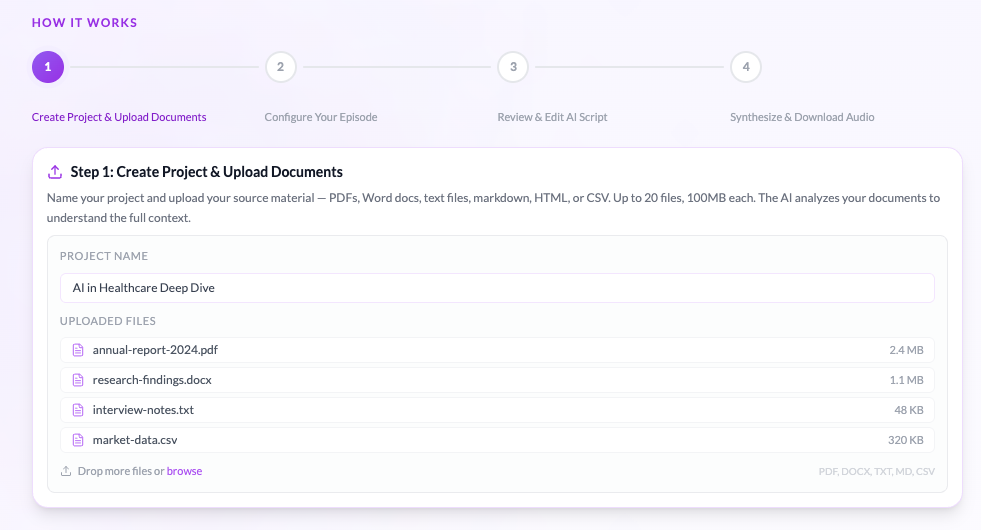
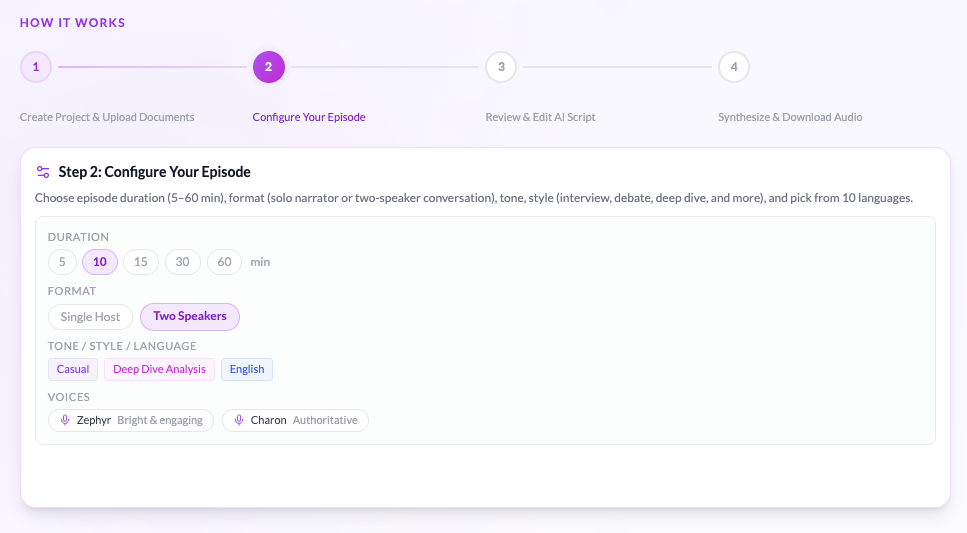
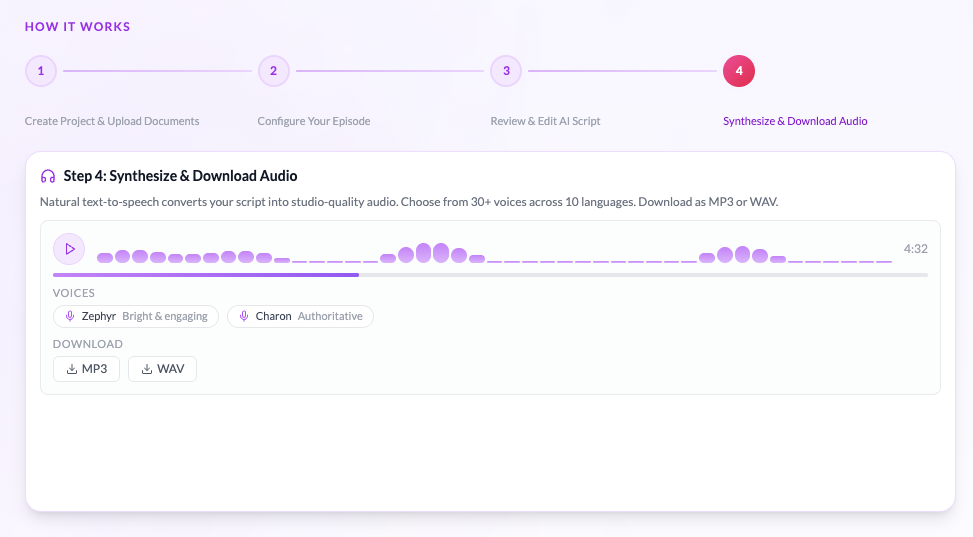
PodCraft is a GovTech-built tool that turns your documents into a fully scripted, multi-speaker podcast. You can review and edit the AI script before synthesising the final audio — giving you more control over the output.
- Go to studio.platform.ai.tech.gov.sg/showcases/podcraft and log in.
- Follow the four steps on the platform as shown below.
Option C — Record Your Own Audio + Transcribe
If you prefer to record in your own voice, use any recording tool and then run it through Transcribe to generate the transcript automatically.
- Prepare your script using Pair, Gemini or NotebookLM as a drafting aid.
- Record your audio using your device microphone or a USB recording setup. Aim for a quiet environment with minimal background noise.
- Export your recording as MP3 or WAV.
- Upload the audio file to Transcribe (accessible via SGTS) to generate your transcript automatically.
- Give the transcript a read-through — auto-transcription can miss words here and there, so it's worth a quick scan before you submit.
- Loop in your team for a final check before you send it to Glow.